How to get MX logger data to HOBOware through HOBOlink
{"nid":"7016","uuid":"944c1ad9-6b0b-4f73-8ba3-04f708eddd89","vid":"7861","langcode":"und","revision_timestamp":"1656614268","status":"1","title":"How to get MX logger data to HOBOware through HOBOlink","created":"1517854939","changed":"1692131351","promote":"0","sticky":"0","default_langcode":"1","revision_default":"1","revision_translation_affected":"1","path":{"alias":"\/resources\/tech-notes\/how-to-get-mx-logger-data-to-hoboware-through-hobolink","pid":"13651","langcode":"und"},"body":"<p><span style=\"font-size:11px;\"><span style=\"font-family:arial,helvetica,sans-serif;\">Step 1. Set up a HOBOlink account if you do not have one already. (<a href=\"https:\/\/www.hobolink.com\/\">HOBOlink<\/a>) <em>Note<\/em>: There is no need to register an MX logger on HOBOlink. <\/span><\/span><\/p>\r\n\r\n<p><span style=\"font-size:11px;\"><span style=\"font-family:arial,helvetica,sans-serif;\">Step 2. Add your HOBOlink credentials to your HOBOmobile app. See image below. <\/span><\/span><\/p>\r\n\r\n<p> <\/p>\r\n\r\n<p><span style=\"font-size:11px;\"><span style=\"font-family:arial,helvetica,sans-serif;\"><p><drupal-media\n data-embed-button=\"embed_image\"\n data-entity-type=\"media\" data-width=\"494\" data-height=\"358\" data-entity-uuid=\"2f14f95b-a975-4e9b-a9b9-f58586ecfdd5\"><\/drupal-media><\/p><\/span><\/span><\/p>\r\n\r\n<p><span style=\"font-size:11px;\"><span style=\"font-family:arial,helvetica,sans-serif;\">Step 3. Now, when you connect and readout an MX data logger, the data will be uploaded to your HOBOlink account. You can stop here if you are only using HOBOlink for additional safe data storage. <\/span><\/span><\/p>\r\n\r\n<p><span style=\"font-size:11px;\"><span style=\"font-family:arial,helvetica,sans-serif;\">Step 4. Create an Export: Log in to your HOBOlink account. On the left hand side Go to \u201cData\u201d and select \u201cExports\u201d<\/span><\/span><\/p>\r\n\r\n<p> <\/p>\r\n\r\n<p style=\"margin-left:1.0in;\"><span style=\"font-size:11px;\"><span style=\"font-family:arial,helvetica,sans-serif;\"><p><drupal-media\n data-embed-button=\"embed_image\"\n data-entity-type=\"media\" data-width=\"120\" data-height=\"120\" data-entity-uuid=\"eb0e4224-3e36-42a8-a1ba-6df7eeeadcbb\"><\/drupal-media><\/p><\/span><\/span><\/p>\r\n\r\n<ol style=\"list-style-type:lower-alpha;\">\r\n\t<li><span style=\"font-size:11px;\"><span style=\"font-family:arial,helvetica,sans-serif;\">Click \"Create New Export\" at the bottom of this page.<\/span><\/span><\/li>\r\n\t<li><span style=\"font-size:11px;\"><span style=\"font-family:arial,helvetica,sans-serif;\">For easy importing to HOBOware, do these two things: select HOBOware CSV under file format and check the \u201cInclude logger and sensor label\/name in column header if available\u201d checkbox. See image below.<\/span><\/span><\/li>\r\n\t<li><span style=\"font-size:11px;\"><span style=\"font-family:arial,helvetica,sans-serif;\">Continue creating your export, going through steps 2 (choosing the Logger and Channels) and 3 (Column ordering) in the export screen.<\/span><\/span><\/li>\r\n\t<li><span style=\"font-size:11px;\"><span style=\"font-family:arial,helvetica,sans-serif;\">Click Save at the bottom of the screen. <\/span><\/span><\/li>\r\n<\/ol>\r\n\r\n<p><span style=\"font-size:11px;\"><span style=\"font-family:arial,helvetica,sans-serif;\"> <\/span><\/span><\/p>\r\n\r\n<p><span style=\"font-size:11px;\"><span style=\"font-family:arial,helvetica,sans-serif;\"><p><drupal-media\n data-embed-button=\"embed_image\"\n data-entity-type=\"media\" data-width=\"451\" data-height=\"276\" data-entity-uuid=\"4283d558-2e43-42a6-b211-ca68130b66d3\"><\/drupal-media><\/p><\/span><\/span><\/p>\r\n\r\n<p> <\/p>\r\n\r\n<p>\u200b<\/p>\r\n\r\n<p><span style=\"font-size:11px;\"><span style=\"font-family:arial,helvetica,sans-serif;\">Step 5. Test. Your screen will change to you Export list. Locate the Export that you just created and click \u201cExport\u201d. The file will then be downloaded to your computer.<\/span><\/span><\/p>\r\n\r\n<p style=\"margin-left:.25in;\"><span style=\"font-size:11px;\"><span style=\"font-family:arial,helvetica,sans-serif;\"><em>Note<\/em>. You can move the file from your downloads folder to a desired file location and open from there. It is important not to modify the export with another program before you import into HOBOware. <\/span><\/span><\/p>\r\n\r\n<p><span style=\"font-size:11px;\"><span style=\"font-family:arial,helvetica,sans-serif;\">Step 6. Import this file to HOBOware. First go to the the File menu, select \u201cImport Text Data\u201d (crtl T), and locate the recently exported file. Follow the prompts from HOBOware, check the date and time format, and adjust if needed. Click Plot. Now you can use all the imbedded HOBOware features to work with your data. <\/span><\/span><\/p>\r\n\r\n<p><span style=\"font-size:11px;\"><span style=\"font-family:arial,helvetica,sans-serif;\">Step 7. (optional) Save the file as a project. Go to the file menu and select \u201cSave Project.\u201d <\/span><\/span><\/p>\r\n\r\n<p> <\/p>","associated_products":["MX100","MX1101","MX1102","MX1102A","MX2001","MX2201","MX2202","MX2203","MX2204","MX2301","MX2301A","MX2302","MX2302A","MX2303","MX2304","MX2305","MX2501"],"brand":"HOBO","documentation_hoboconnect":"0","documentation_intemp_app":"0","documentation_is_datasheet":"0","meta_tags":"a:1:{s:6:\"robots\";s:7:\"noindex\";}","product_family_series":"MX Family","resource_topic":["Software"],"resource_type":"Tech Note","tech_note_audience":["External"],"tech_note_type":["Data file Help"]}
Step 1. Set up a HOBOlink account if you do not have one already. (HOBOlink) Note: There is no need to register an MX logger on HOBOlink.
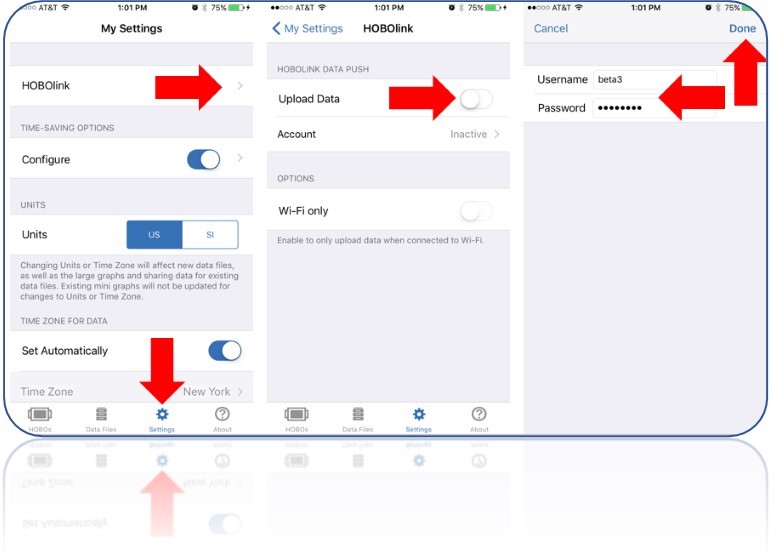
Step 2. Add your HOBOlink credentials to your HOBOmobile app. See image below.
Step 3. Now, when you connect and readout an MX data logger, the data will be uploaded to your HOBOlink account. You can stop here if you are only using HOBOlink for additional safe data storage.
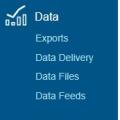
Step 4. Create an Export: Log in to your HOBOlink account. On the left hand side go to “Data” and select “Exports”.
- Click "Create New Export" at the bottom of this page.
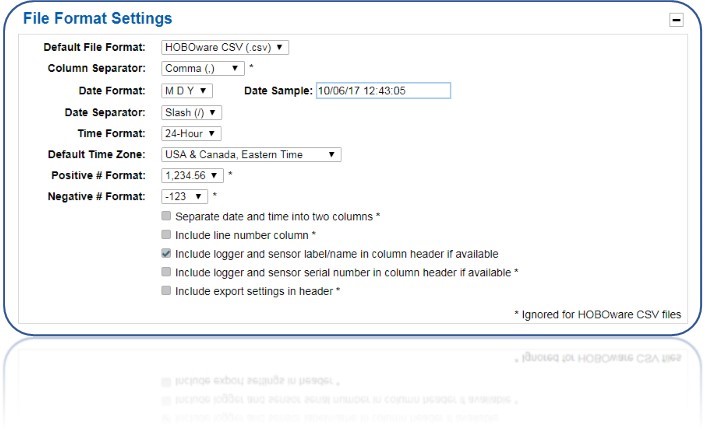
- For easy importing to HOBOware, do these two things: select HOBOware CSV under file format and check the “Include logger and sensor label/name in column header if available” checkbox. See image below.
- Continue creating your export, going through steps 2 (choosing the Logger and Channels) and 3 (Column ordering) in the export screen.
- Click Save at the bottom of the screen.
Step 5. Test. Your screen will change to your Export list. Locate the Export that you just created and click “Export”. The file will then be downloaded to your computer.
Note. You can move the file from your downloads folder to a desired file location and open from there. It is important not to modify the export with another program before you import into HOBOware.
Step 6. Import this file to HOBOware. First go to the File menu, select “Import Text Data” (Ctrl T), and locate the recently exported file. Follow the prompts from HOBOware, check the date and time format, and adjust if needed. Click Plot. Now you can use all the embedded HOBOware features to work with your data.
Step 7. (optional) Save the file as a project. Go to the File menu and select “Save Project.”