Waterproof shuttle for beginners
{"nid":"2036","uuid":"653c4f75-2eee-4776-beba-c3ea5ad351dc","vid":"2881","langcode":"und","revision_timestamp":"1656615059","status":"1","title":"Waterproof shuttle for beginners","created":"1367267856","changed":"1692131365","promote":"1","sticky":"0","default_langcode":"1","revision_default":"1","revision_translation_affected":"1","path":{"alias":"\/resources\/tech-notes\/waterproof-shuttle-for-beginners","pid":"4366","langcode":"und"},"body":"<p><span style=\"font-family: "Arial","sans-serif";\">These photos illustrate how to use the Waterproof Shuttle and a data logger together. We are showing a Water Temp Pro v2 - U22-001 logger for this demonstration, but the same steps apply to any USB-based optic logger. These steps are necessary for initial deployment of a logger and when communicating with the logger directly. <\/span><\/p>\r\n\r\n<p> <\/p>\r\n\r\n<p><p><drupal-media\n data-embed-button=\"embed_image\"\n data-entity-type=\"media\" data-entity-uuid=\"b4419900-2d74-4793-8e0b-328cf61c4d49\"><\/drupal-media><\/p><!--[endif]--><\/p>\r\n\r\n<p><span style=\"font-family: Arial, sans-serif; line-height: 20.7999992370605px;\">Note that Water T<\/span><span style=\"font-family: Arial, sans-serif; line-height: 20.7999992370605px;\">emp Pro coupler is attached to the shuttle.<\/span><\/p>\r\n\r\n<p> <\/p>\r\n\r\n<p><span style=\"font-family: "Arial","sans-serif";\"><!--[if gte vml 1]><v:shape\r\n\r\n id=\"Picture_x0020_2\" spid=\"_x0000_i1026\" type=\"#_x0000_t75\" alt=\"\" style='width:431.25pt;\r\n\r\n height:210pt'>\r\n\r\n <v:imagedata src=\"file:\/\/\/C:DOCUME~1MDELEL~1LOCALS~1Tempmsohtmlclip101clip_image002.jpg\" mce_src=\"file:\/\/\/C:DOCUME~1MDELEL~1LOCALS~1Tempmsohtmlclip101clip_image002.jpg\"\r\n\r\n href=\"cid:image006.jpg@01CA79A6.5195E330\" \/>\r\n\r\n<\/v:shape><![endif]--><!--[if !vml]--><p><drupal-media\n data-embed-button=\"embed_image\"\n data-entity-type=\"media\" data-entity-uuid=\"384a6b0a-98c2-412f-a3aa-dad9146b620e\"><\/drupal-media><\/p><!--[endif]--><\/span><\/p>\r\n\r\n<p><span style=\"font-family: Arial, sans-serif; line-height: 20.7999992370605px;\">Insert the data l<\/span><span style=\"font-family: Arial, sans-serif; line-height: 20.7999992370605px;\">ogger tightly into the coupler. <\/span><span style=\"font-family: Arial, sans-serif; line-height: 20.7999992370605px;\">You may need to tap the logger down with the palm of your hand to insure a proper connection. <\/span><\/p>\r\n\r\n<p> <\/p>\r\n\r\n<p><span style=\"font-family: "Arial","sans-serif";\"><!--[if gte vml 1]><v:shape\r\n\r\n id=\"Picture_x0020_3\" spid=\"_x0000_i1027\" type=\"#_x0000_t75\" alt=\"\" style='width:429pt;\r\n\r\n height:169.5pt'>\r\n\r\n <v:imagedata src=\"file:\/\/\/C:DOCUME~1MDELEL~1LOCALS~1Tempmsohtmlclip101clip_image003.jpg\" mce_src=\"file:\/\/\/C:DOCUME~1MDELEL~1LOCALS~1Tempmsohtmlclip101clip_image003.jpg\"\r\n\r\n href=\"cid:image008.jpg@01CA79A6.5195E330\" \/>\r\n\r\n<\/v:shape><![endif]--><!--[if !vml]--><p><drupal-media\n data-embed-button=\"embed_image\"\n data-entity-type=\"media\" data-entity-uuid=\"168309b8-434a-4208-be95-4ca4cf39b61c\"><\/drupal-media><\/p><!--[endif]--><\/span><\/p>\r\n\r\n<p><span style=\"font-family: Arial, sans-serif; line-height: 20.7999992370605px;\">Insert the USB cable into the shuttle. Make sure the USB cable is also plugged into the computer with Hoboware Pro installed. <\/span><\/p>\r\n\r\n<p> <\/p>\r\n\r\n<p><span style=\"font-family: "Arial","sans-serif";\"><p><drupal-media\n data-embed-button=\"embed_image\"\n data-entity-type=\"media\" data-entity-uuid=\"bf0f1b3c-496d-422a-88e4-e1b2a6d9115d\"><\/drupal-media><\/p><\/span><\/p>\r\n\r\n<p><span style=\"font-family: Arial, sans-serif; line-height: 20.7999992370605px;\">Squeeze the lever on the side of the coupler so that the end of the lever makes contact with the shuttle. (No, it will not break.) <\/span><\/p>\r\n\r\n<p> <\/p>\r\n\r\n<p><span style=\"font-family: "Arial","sans-serif";\"><!--[if gte vml 1]><v:shape\r\n\r\n id=\"Picture_x0020_5\" spid=\"_x0000_i1029\" type=\"#_x0000_t75\" alt=\"\" style='width:424.5pt;\r\n\r\n height:158.25pt'>\r\n\r\n <v:imagedata src=\"file:\/\/\/C:DOCUME~1MDELEL~1LOCALS~1Tempmsohtmlclip101clip_image005.jpg\" mce_src=\"file:\/\/\/C:DOCUME~1MDELEL~1LOCALS~1Tempmsohtmlclip101clip_image005.jpg\"\r\n\r\n href=\"cid:image015.jpg@01CA79A6.5195E330\" \/>\r\n\r\n<\/v:shape><![endif]--><!--[if !vml]--><p><drupal-media\n data-embed-button=\"embed_image\"\n data-entity-type=\"media\" data-entity-uuid=\"9f617fa1-41fb-4c6c-a24f-66e3bf5674fe\"><\/drupal-media><\/p><!--[endif]--><\/span> <span style=\"font-family: "Arial","sans-serif";\"> <\/span><\/p>\r\n\r\n<p><span style=\"font-family: Arial, sans-serif; line-height: 20.7999992370605px;\">The \"OK\" LED light should glow and stay on. At this point you will be able to communicate with your logger directly through the shuttle. Referrer to the Hoboware U<\/span><span style=\"font-family: Arial, sans-serif; line-height: 20.7999992370605px;\">sers Guide for launching help. <\/span><\/p>\r\n\r\n<p><span style=\"font-family: "Arial","sans-serif";\">HAPPY LOGGING!<\/span><\/p>","applications":["Water Resource Management"],"associated_products":["U-DTW-1","U20-001-01","U20-001-02","U20-001-03","U20-001-04","U22-001","U23-001","U23-002","U23-003","U23-004","U24-001","U26-001","UA-001-08","UA-001-64","UA-002-08","UA-002-64","UA-003-64","UA-004-64","UTBI-001"],"brand":"HOBO","documentation_hoboconnect":"0","documentation_intemp_app":"0","documentation_is_datasheet":"0","meta_tags":"a:1:{s:6:\"robots\";s:7:\"noindex\";}","resource_topic":["Getting Started"],"resource_type":"Tech Note","tech_note_type":["Communications"]}
These photos illustrate how to use the Waterproof Shuttle and a data logger together. We are showing a Water Temp Pro v2 - U22-001 logger for this demonstration, but the same steps apply to any USB-based optic logger. These steps are necessary for initial deployment of a logger and when communicating with the logger directly.
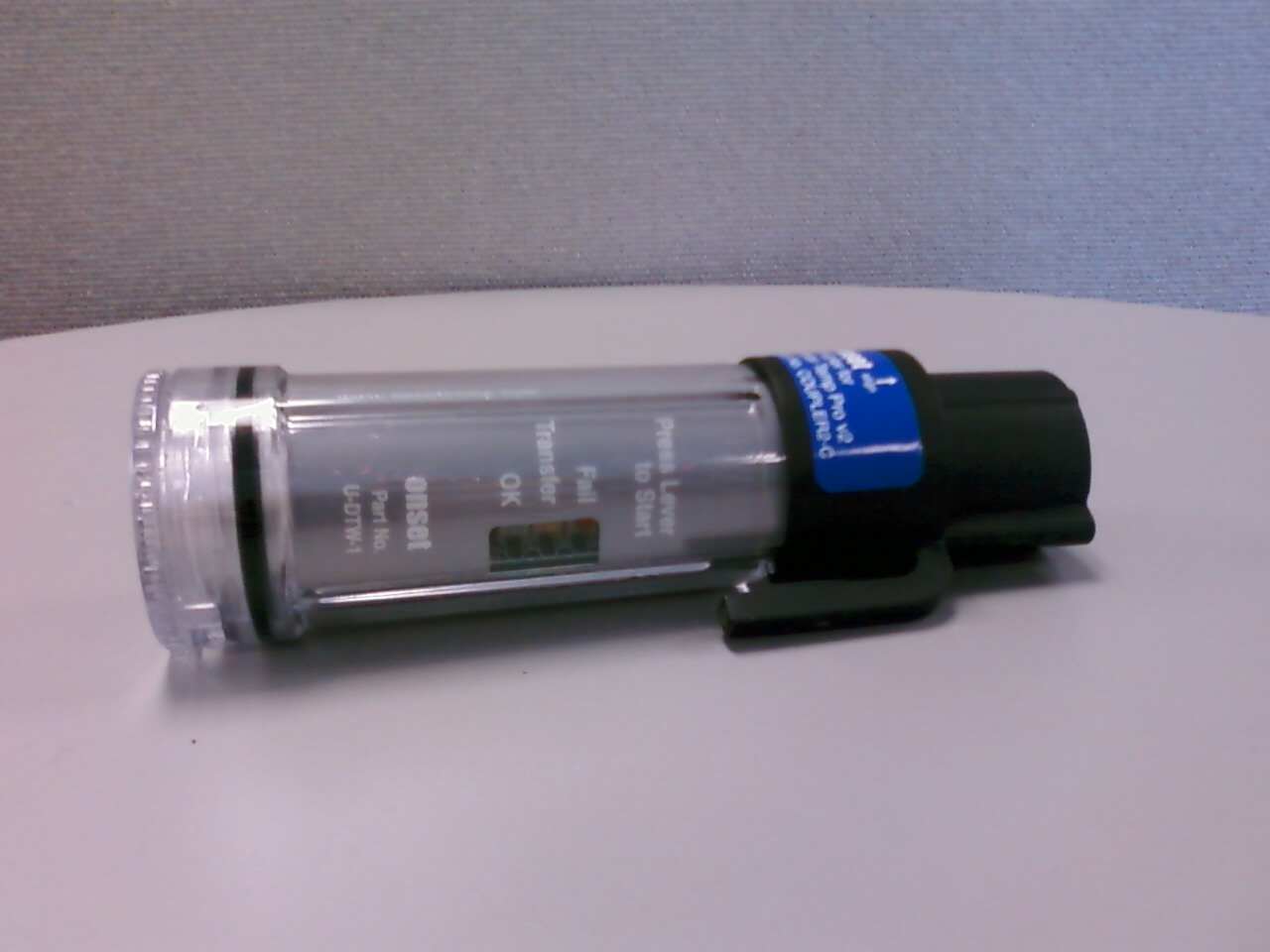
Note that the Water Temp Pro coupler is attached to the shuttle.
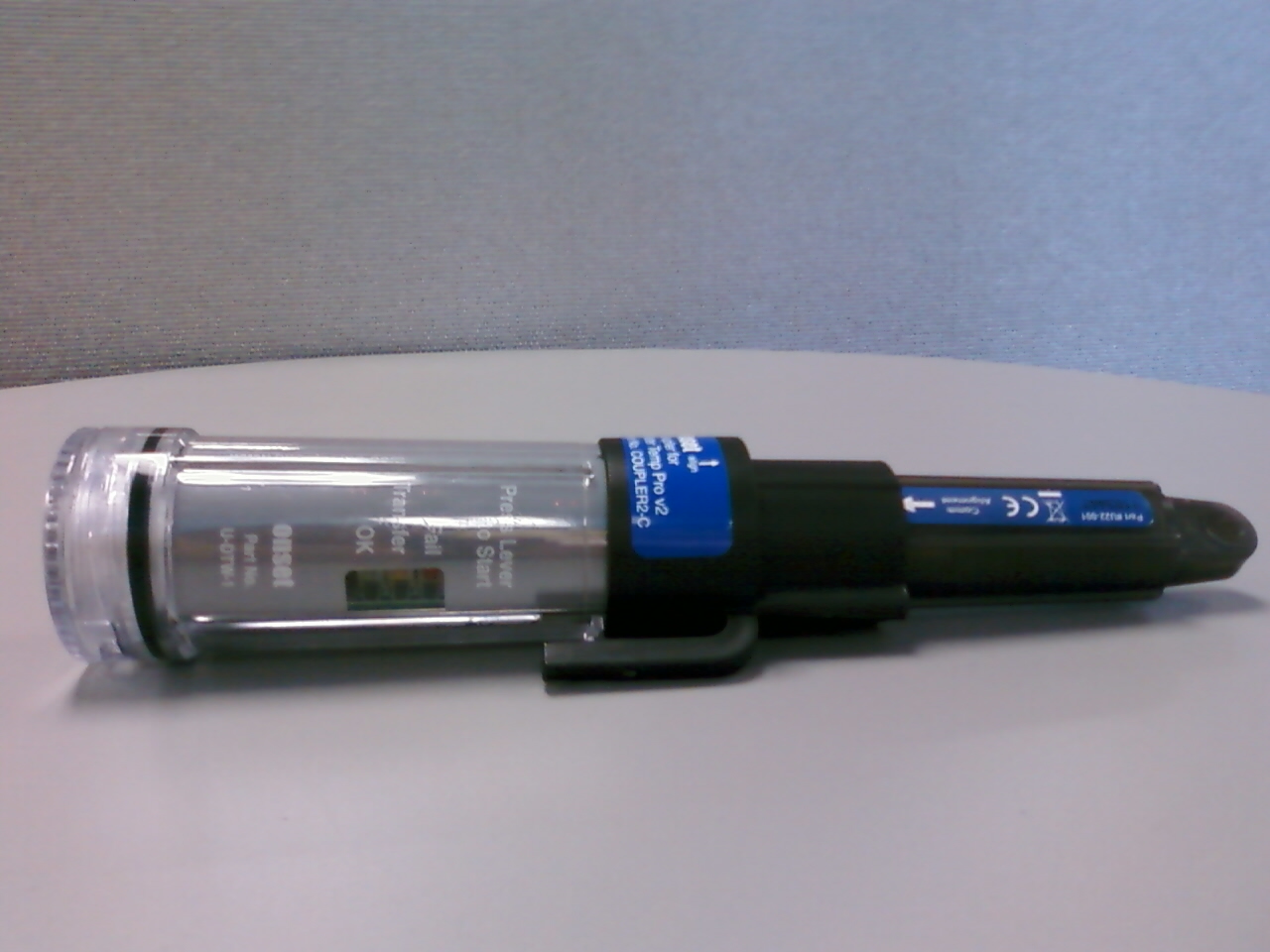
Insert the data logger tightly into the coupler. You may need to tap the logger down with the palm of your hand to ensure a proper connection.
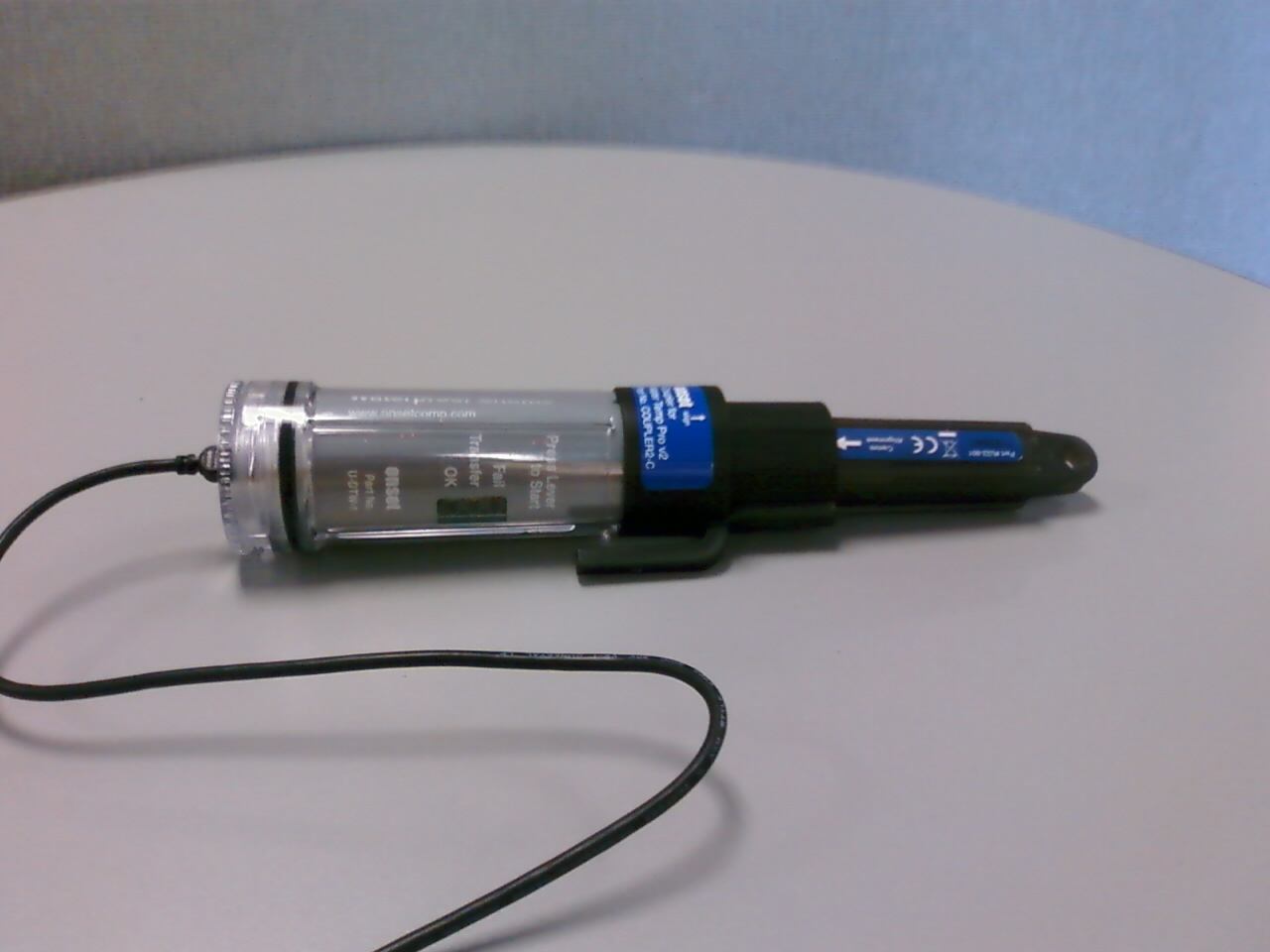
Insert the USB cable into the shuttle. Make sure the USB cable is also plugged into the computer with Hoboware Pro installed.
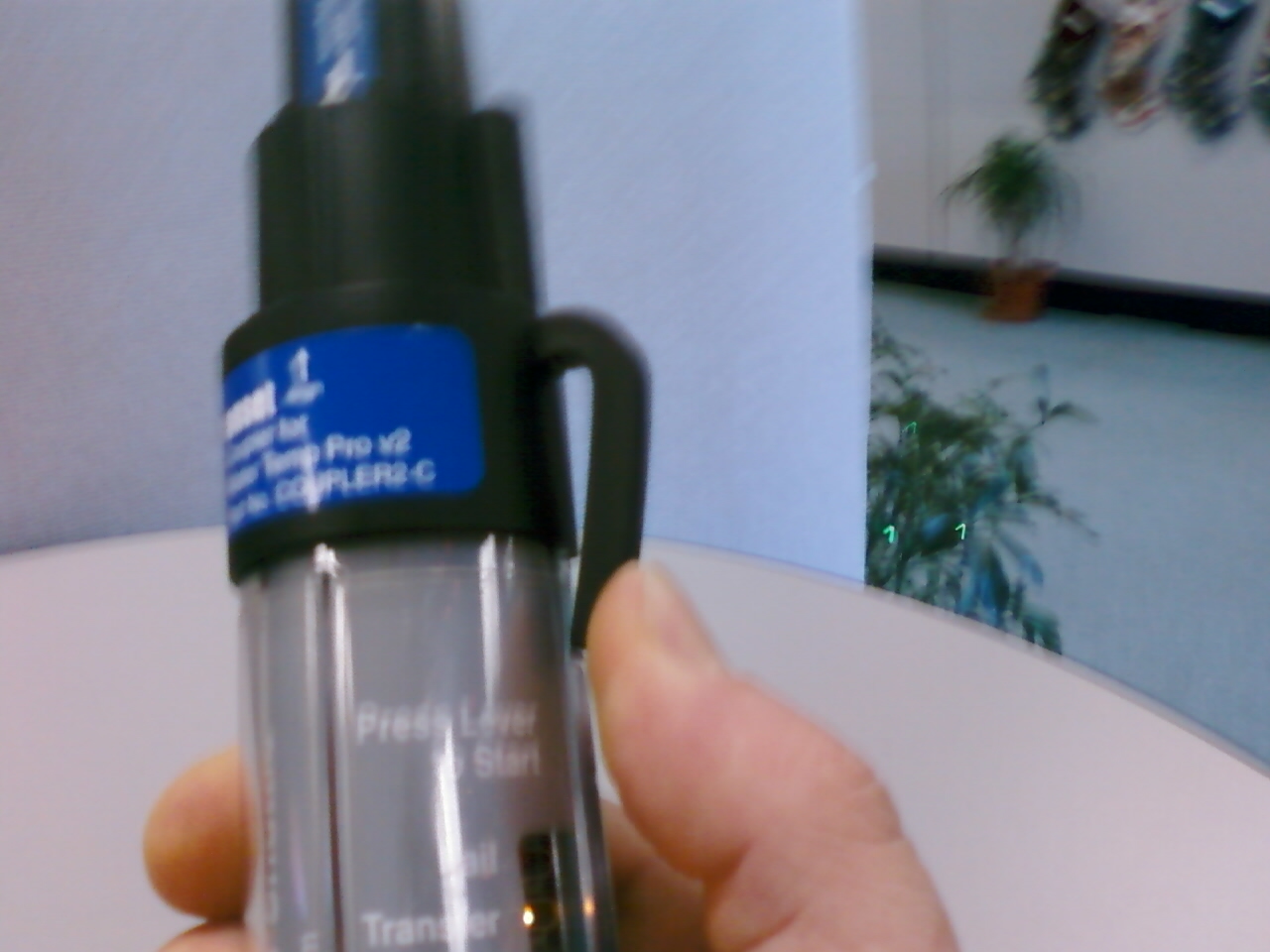
Squeeze the lever on the side of the coupler so that the end of the lever makes contact with the shuttle. (No, it will not break.)
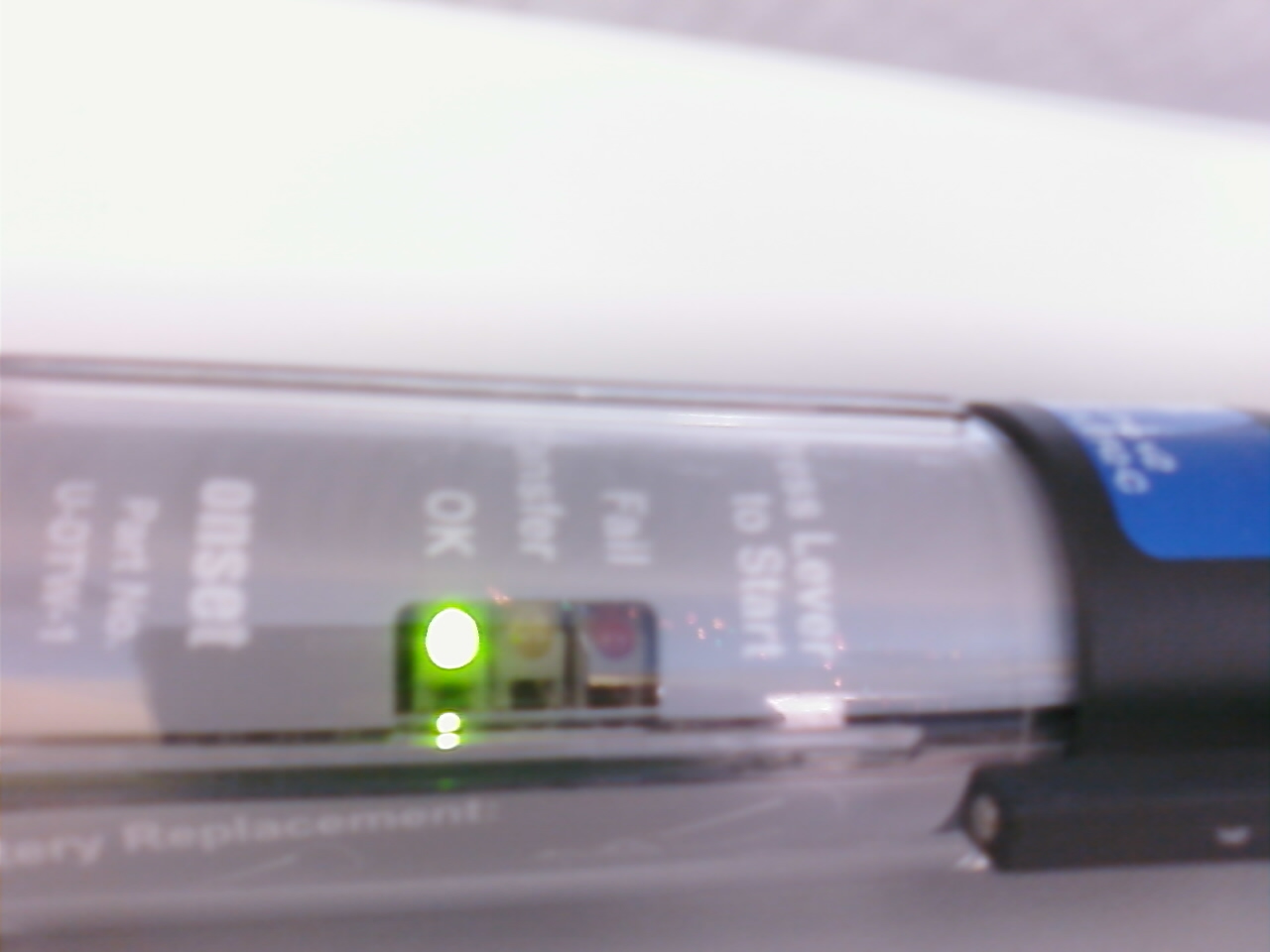
The "OK" LED light should glow and stay on. At this point, you will be able to communicate with your logger directly through the shuttle. Refer to the Hoboware Users Guide for launching help.
HAPPY LOGGING!