How to turn on and deliver HOBOware log files
{"nid":"7011","uuid":"a9d0f9be-f35f-4b80-a96b-657a673383f0","vid":"7856","langcode":"und","revision_timestamp":"1656614268","status":"1","title":"How to turn on and deliver HOBOware log files","created":"1517849782","changed":"1692131351","promote":"0","sticky":"0","default_langcode":"1","revision_default":"1","revision_translation_affected":"1","path":{"alias":"\/resources\/tech-notes\/how-to-turn-and-deliver-hoboware-log-files","pid":"13636","langcode":"und"},"body":"<p>1.Open HOBOware and click HELP>ENABLE LOGGING. Then close out of HOBOware completely.<\/p>\r\n\r\n<p>2. Re-open HOBOware and perform the action that isn\u2019t working correctly (Data Assistant Processing, Export, etc.). Perform this step two or three times to ensure we have a couple instances in the log file.<\/p>\r\n\r\n<p>3. Click HELP>SUBMIT TECHNICAL SUPPORT REQUEST\u2026. (be sure to enter your case number, as this will help our support team file these logs appropriately).<\/p>\r\n\r\n<p> <\/p>\r\n\r\n<p><p><drupal-media\n data-embed-button=\"embed_image\"\n data-entity-type=\"media\" data-width=\"660\" data-height=\"682\" data-entity-uuid=\"b6f73329-5a3b-46d4-afbc-792a7b693da8\"><\/drupal-media><\/p><\/p>\r\n\r\n<p> <\/p>\r\n\r\n<p> <\/p>\r\n\r\n<p> <\/p>","brand":"HOBO","documentation_hoboconnect":"0","documentation_intemp_app":"0","documentation_is_datasheet":"0","meta_tags":"a:1:{s:6:\"robots\";s:7:\"noindex\";}","resource_topic":["Software"],"resource_type":"Tech Note","tech_note_audience":["External"],"tech_note_type":["Software Help"]}
1.Open HOBOware and click HELP>ENABLE LOGGING. Then close out of HOBOware completely.
2. Re-open HOBOware and perform the action that isn’t working correctly (Data Assistant Processing, Export, etc.). Perform this step two or three times to ensure we have a couple instances in the log file.
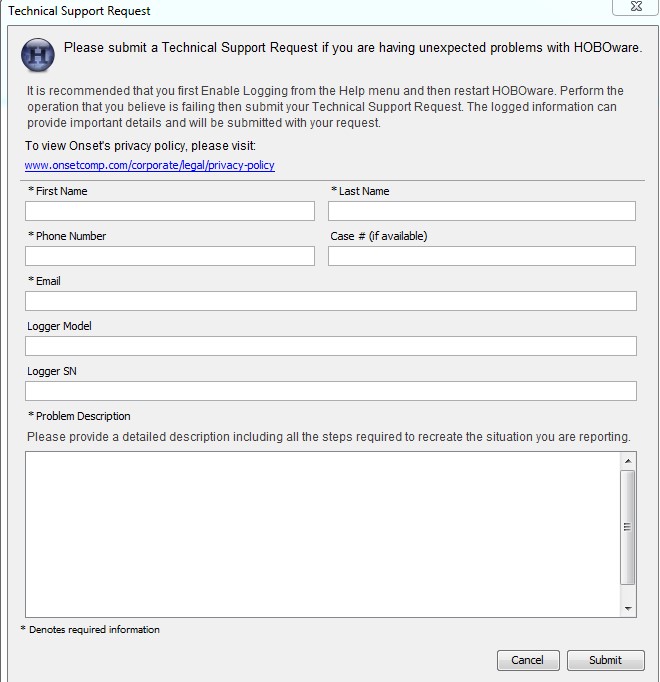
3. Click HELP>SUBMIT TECHNICAL SUPPORT REQUEST…. (be sure to enter your case number, as this will help our support team file these logs appropriately).